
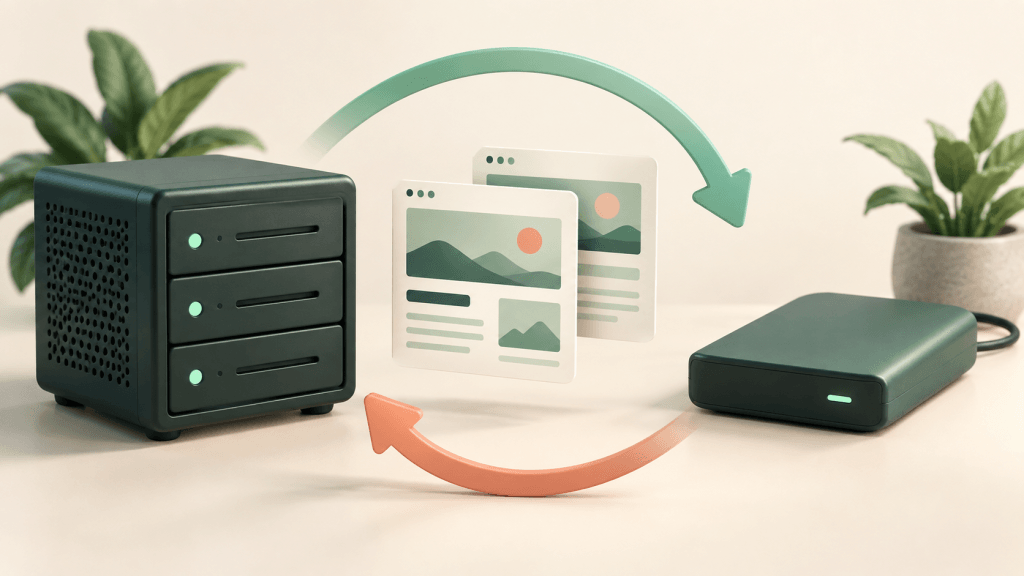
A backup is useful only if it contains the data you need and can be restored when you need it. Before choosing a hosting plan, distinguish included provider backups, copies you create yourself and the restoration help available for the service.
Confirm coverage instead of assuming it
MyLightHost’s shared-hosting page describes backup options, while the legal information directs customers to check the selected plan’s backup and restoration terms. A feature label alone does not establish a retention period, recovery time or guarantee that every file and database is covered.
Ask these questions for the exact product before ordering or depending on its backups:
- Which files, databases and mailboxes are included or excluded?
- How often are copies made, and how far back are restore points retained?
- Can you restore selected files or a database, or only a whole account?
- Are restores self-service or handled through support, and are there charges?
- What happens to backup availability after cancellation or service expiry?
Record the answers with your service details. This guide does not assign an unverified schedule, storage location, retention period or restore price to your plan.
Keep a separate recovery copy
For WordPress, website files and the database work together. Files alone may omit posts, settings and orders; a database alone does not contain your uploaded media and application files. Store recovery copies away from the same account you might need to recover, restrict access and avoid leaving downloadable archives in a public website directory.
Choose a backup interval based on the amount of new work you could afford to lose. A frequently changing store and a rarely edited brochure site have different needs. Keep an additional known-good copy before a migration, major update or risky configuration change.
Use the tools your service actually provides
If your plan provides cPanel and its Backup Wizard is enabled, that interface offers backup and partial-restore functions. A full-account archive is not the same as a self-service full restore: cPanel documents limits on restoring those archives from the customer interface. Check the official Backup Wizard instructions and ask support which path applies to your account.
Other panels and backup systems have different workflows. Do not install a random restore tool or upload an archive over your live website merely because another hosting guide uses it.
Plan the restore before overwriting anything
- Identify the affected service and the last time it was known to work, including the timezone.
- Choose the files, database or wider account scope that actually needs recovery.
- Preserve current data where possible. An older database restore can remove newer orders, messages or edits.
- Confirm the available restore point, possible downtime and any cost with support before authorising the work.
- Test the recovered site, sign-in, forms and relevant business workflow afterwards.
Where practical, prove that a backup works on an isolated copy first. A successful backup notification is not proof of successful recovery. If you suspect a compromise, preserve evidence and follow the security and maintenance checklist before treating an old copy as clean.
Ask about your backup or a restore
Open a Technical Support ticket with the service, affected data and desired recovery point. For a new order, confirm backup coverage with pre-sales.
Reviewed 14 September 2026. Sources: MyLightHost’s linked product and legal pages, and the official cPanel documentation linked above. Available tools and service commitments remain plan-specific.