
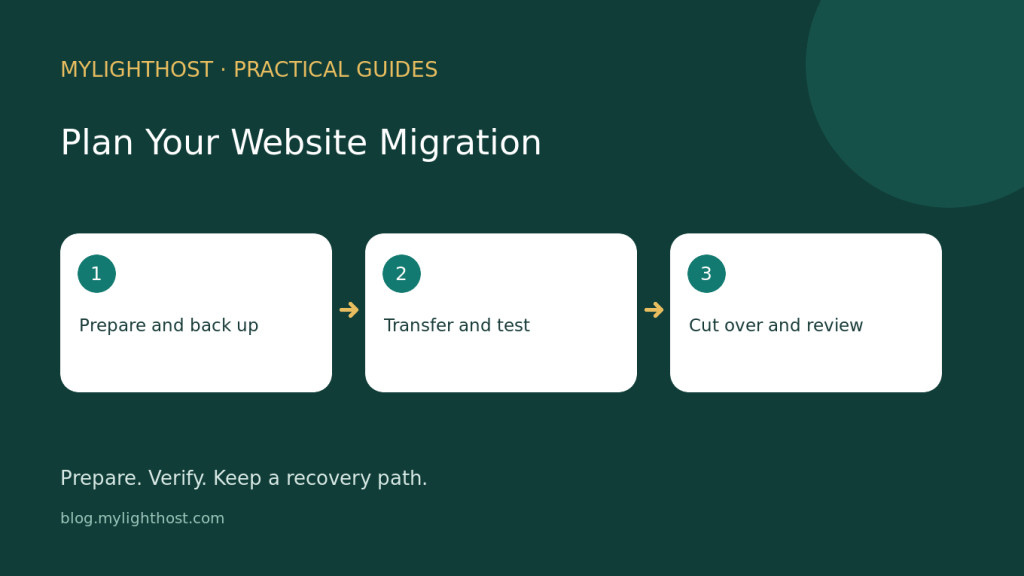
A website migration involves more than transferring a folder. Before changing where visitors reach your site, establish what must move, who will check it and how you would recover if testing reveals a problem. This MyLightHost guide draws on WordPress migration and backup documentation. Its file and database guidance is specific to WordPress; email routing, DNS and scheduled jobs need confirmation from the people managing your setup. Timing and disruption will depend on that setup.
1. Define the move and assign responsibilities
Write down whether you are changing only the server or also the domain, site address or installation directory. WordPress distinguishes its core installation address from the public site address. Changing these settings without a clear plan can make the site difficult to access.
Create an inventory of the website files, database, uploads, themes, plugins and custom configuration. Separately list email arrangements, forms and scheduled tasks for review. Assign a named person to the transfer, DNS changes, application testing and rollback decision. Confirm access before scheduling the move.
- Agree on a migration window and who can approve the cutover.
- Ask the site owner how new content and submissions should be handled during the transfer.
- Confirm which tasks your administrator and each provider will perform; do not assume service coverage.
2. Create a recoverable backup set
Back up both the database and website files before making migration changes. Downloading the WordPress directory normally does not capture the database, which resides in a separate database system. A database export must be imported during recovery.
Treat the database export and file copy as a matched set created close together. The documentation recommends backing up the database first, then the files. Include uploads, plugins, themes, configuration and custom rewrite rules. Label the set with its creation time and keep a copy away from the source server.
Retain several recent versions in different locations. Establish who can restore them and rehearse recovery in a separate test environment. Confirm any provider backup arrangements directly, including how a copy can be obtained.
3. Transfer files and database carefully
Copy the website files and import the database at the destination. Review wp-config.php against the destination database settings, including its host, name and user. Preserve a backup of the original configuration before editing it.
If the domain or installation path changes, review stored address references as well. WordPress warns that indiscriminate database replacement can damage serialized values used by themes and widgets. Have a competent administrator choose a WordPress-aware replacement method, define its scope and preserve post GUID values.
Review custom redirects and permalink configuration. Keep a separate copy of existing .htaccess rules before rebuilding them, then test the redirects. The supplied migration instructions primarily address single installations; a multisite network needs a separate migration assessment.
4. Confirm email continuity and form delivery
Treat email continuity as its own work item. The supplied WordPress documents do not establish your mail routing or mailbox migration procedure. Ask the mail and DNS administrators to document the current arrangement, identify any proposed changes and agree on how continuity will be checked.
For each website form, record the intended recipient and expected confirmation. Assign someone to send clearly marked test submissions and verify receipt at the intended mailbox. Use fictional test details. Ask the administrator to confirm any destination-specific sending configuration rather than assuming the copied website has everything it needs.
- Confirm whether mailboxes stay with their current provider or require a separate move.
- Have the DNS administrator review the intended mail routing before cutover.
- Agree who will investigate missing form messages and how unresolved failures affect approval.
5. Test the destination and review scheduled jobs
Ask the administrator to arrange destination testing before public DNS changes. The WordPress documentation describes testing through temporary address settings in some circumstances; choose a method appropriate to your installation and record any temporary changes that must be reversed.
Check page content, images, navigation, administrator access, redirects and forms. Verify the intended WordPress and site address settings. Record failures and retest after fixes.
Inventory scheduled jobs, including automated backups. Confirm with the administrator which tasks need recreation, their schedules and which server should run them during the transition. The supplied sources describe automated backups but do not provide a general scheduled-job migration procedure.
6. Set cutover and rollback criteria
Before authorizing DNS cutover, review the test record, backup location and unresolved issues. Agree on rollback triggers, such as inaccessible administration or failed essential forms. Have the DNS administrator document the reversal steps and expected timing for your configuration; the supplied sources do not establish a universal DNS timeline.
Keep the previous environment available for the agreed review period. If restoration is required, WordPress recommends restoring files before importing the database, then checking configuration. Decide how to preserve or reconcile changes received after the backup. Returning to an earlier copy requires a deliberate decision about that newer data.
Plan your next step
Close the migration only after the responsible people have reviewed the live site, email checks and scheduled tasks. Keep the test notes and recovery instructions with the backup record so the next administrator can understand what changed.
Compare the current shared hosting options and confirm the requirements for your own website before ordering.
Source notes
WordPress migration documentation · WordPress backup documentation. Sources checked 2026-09-25.